We use minimal analytics to improve the site. Is that okay?

Alik Griffin
San Clemente Sunset
Subscription Form
  • Reviews
    • Accessory Reviews
    • Calculators
      • Video Data Rate Calculator | Record Time Calculator
      • Diffraction Calculator
      • DoF Calculator | Lens Equivalent
      • Shutter Speed to Shutter Angle Calculator
    • Camera Reviews
    • Lens Reviews
    • Memory Cards Recommendations
      • Fastests SD Memory Cards
      • Fastest MicroSD Cards
      • Fastest CFExpress Type-B Card
      • Fastest CFExpress Type-A Cards
      • Best CFast Memory Card
    • List of Mics
      • Best Streaming & Podcast Mics
  • Camera Guides
    • List of all Blackmagic Cameras
    • List Of all Canon RF Cameras
    • List of all Fujifilm Cameras
    • List of all Nikon Z Cameras
    • List of all Panasonic Cameras
    • List Of all Sony E Cameras
  • List of Lenses
    • Canon RF Lenses
    • Fujifilm GFX Lenses
    • Fujifilm XF Lenses
    • L-Mount Lenses
    • Leica M Lenses
    • Micro Four Thirds Lenses
    • Nikon Z Lenses
    • PL Mount Cine Lenses
    • Sony E Lenses (FE and APS-C)
  • Store
  • My account
Alik Griffin
Alik Griffin
  • Reviews
    • Accessory Reviews
    • Calculators
      • Video Data Rate Calculator | Record Time Calculator
      • Diffraction Calculator
      • DoF Calculator | Lens Equivalent
      • Shutter Speed to Shutter Angle Calculator
    • Camera Reviews
    • Lens Reviews
    • Memory Cards Recommendations
      • Fastests SD Memory Cards
      • Fastest MicroSD Cards
      • Fastest CFExpress Type-B Card
      • Fastest CFExpress Type-A Cards
      • Best CFast Memory Card
    • List of Mics
      • Best Streaming & Podcast Mics
  • Camera Guides
    • List of all Blackmagic Cameras
    • List Of all Canon RF Cameras
    • List of all Fujifilm Cameras
    • List of all Nikon Z Cameras
    • List of all Panasonic Cameras
    • List Of all Sony E Cameras
  • List of Lenses
    • Canon RF Lenses
    • Fujifilm GFX Lenses
    • Fujifilm XF Lenses
    • L-Mount Lenses
    • Leica M Lenses
    • Micro Four Thirds Lenses
    • Nikon Z Lenses
    • PL Mount Cine Lenses
    • Sony E Lenses (FE and APS-C)
  • Store
  • My account
  • Pure Cinema
    Viltrox TCL-X100VI Review | A Budget-Friendly 50mm Upgrade
    • February 17, 2026
  • Thypoch Simera 75mm f1.4 Review
    Thypoch Simera 75mm f1.4 Review & Sample Photos
    • February 18, 2026
  • Kakurajima View
    Viltrox WCL-X100VI Review | A Budget-Friendly 28mm Upgrade
    • February 17, 2026
  • Viltrox 9mm f2.8 Air Review
    Viltrox 9mm f2.8 AIR Review & Sample Photos
    • February 18, 2026
  • Biker Bro
    Viltrox Spark Z3 Flash – Review & Sample Photos
    • February 16, 2026
  • Pure Cinema

    Viltrox TCL-X100VI Review | A Budget-Friendly 50mm Upgrade

    View Post
  • Thypoch Simera 75mm f1.4 Review

    Thypoch Simera 75mm f1.4 Review & Sample Photos

    View Post
  • Kakurajima View

    Viltrox WCL-X100VI Review | A Budget-Friendly 28mm Upgrade

    View Post
Trending Posts
  • Nikon Zf Official Announcement 1
    Nikon Zf – The Fujifilm Killer?
    • February 18, 2026
  • Nikon Z 50mm f1.8 S Lens Review 2
    Nikon Z 50mm f1.8 S Lens Review & Sample Photos
    • February 18, 2026
  • Kamlan 50mm f1.1 II Product Shot 3
    Kamlan 50mm f1.1 II Review & Sample Photos
    • January 18, 2025
0
  • Blog
  • Photo Tips

An Iridient Developer Workflow Guide

  • Alik Griffin
  • April 12, 2024
  • 3 comments

This website contains affiliate links. We will earn a small commission on purchases made through these links. Some of the links used in these articles will direct you to Amazon. As an Amazon Associate, I earn from qualifying purchases.

Do you ever wonder if you’re using the most time-efficient workflow?

If you’re a Fujifilm shooter and want to use Iridient Developer as your primary photo processing software, or even if you want to use it as a RAW converter, then having a solid and consistent workflow is not only going to save you a lot of time, but it will also make your photo editing process a lot simpler. 

In this guide, I want to share how I use Iridient Developer to process my Fujifilm RAW files and a file structure to help you stay organized.

Iridient Developer Workflow

I’ll cover two ways of using Iridient. One uses Lightroom first to build and organize all your photo catalogs, and the other uses Iridient as a plugin that you send files to and from.

The other method uses Iridient Developer Only and manually organizes your photos and exports.

Using Iridient Developer With Lightroom

There are really only two good ways to use Iridient with Lightroom. One is to set it up as an external editor (or plugin), and the other is to send files to the Iridient Developer manually. Both are good to know, and I personally use the two interchangeably.

I’ll cover later how to get files back into Lightroom. There are a few ways of doing this, but really only one that you need to know.

Setting Up Iridient As A Plugin – For JPEG

To set up Iridient Developer as a plugin, you only need to go into Lightroom Preferences, find the External Editing Tab, and choose a new Additional External Editor. Navigate to Iridient Developer in your Applications folder, and you should be ready. There are a few options you can choose from as well. I usually set mine like this.
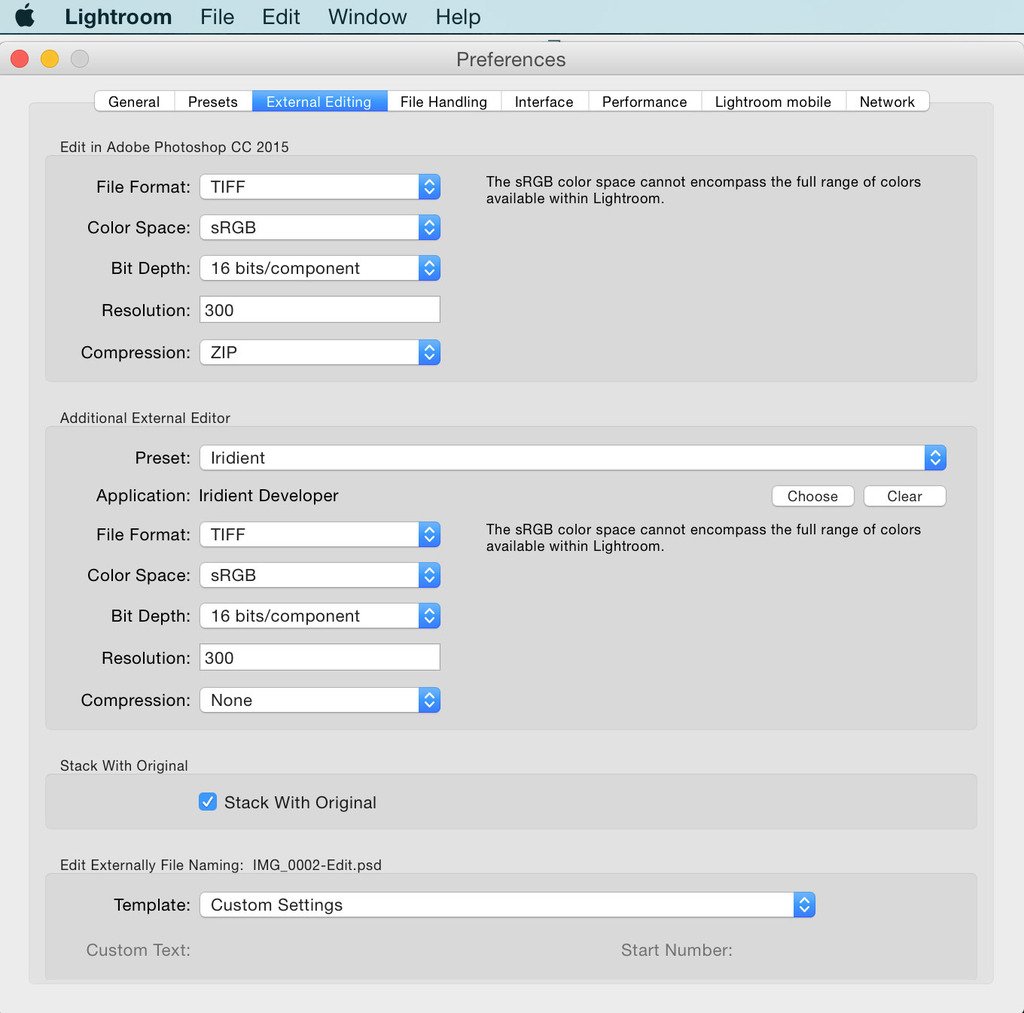
Setting up Iredient Developer as a Plugin

From there once you’re files are in Lightroom, all you’ll need to do is right-click each image or group and select Edit In -> Iridient

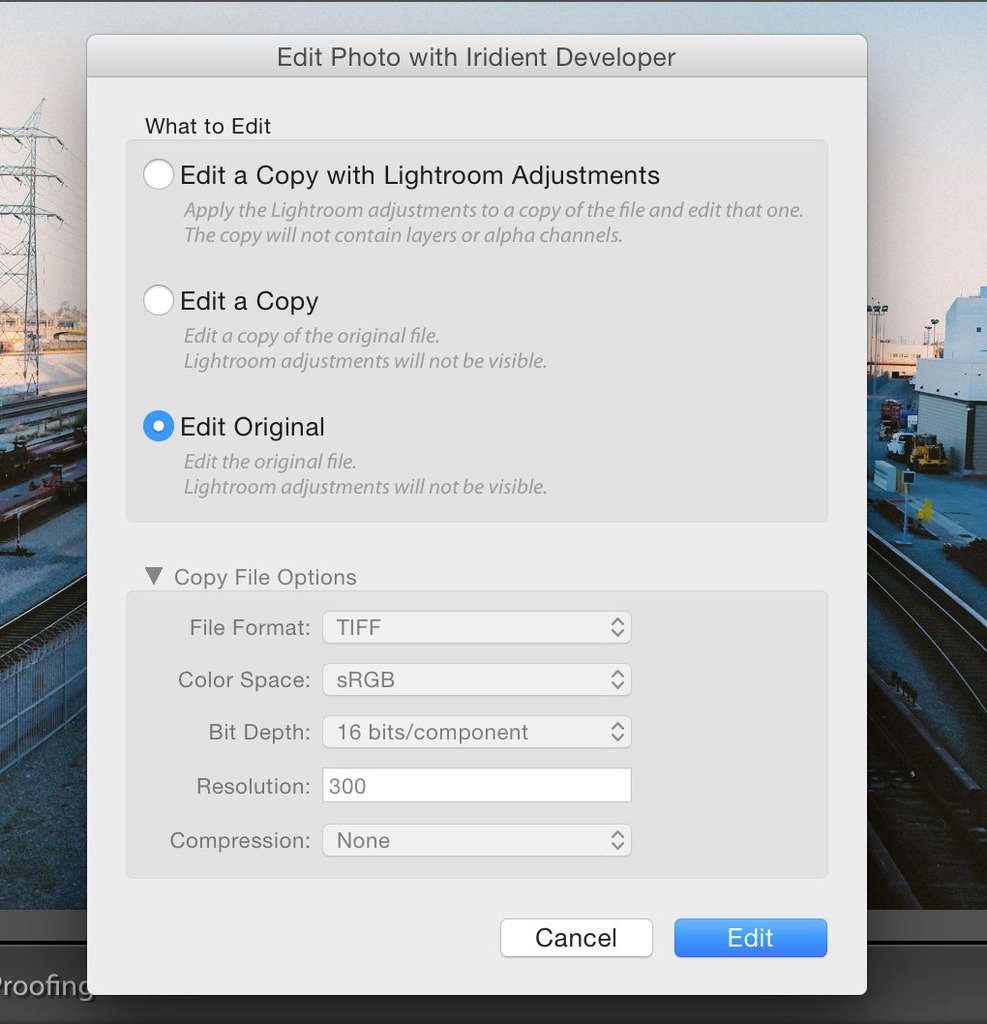
You’ll be prompted with a few options that look like this.
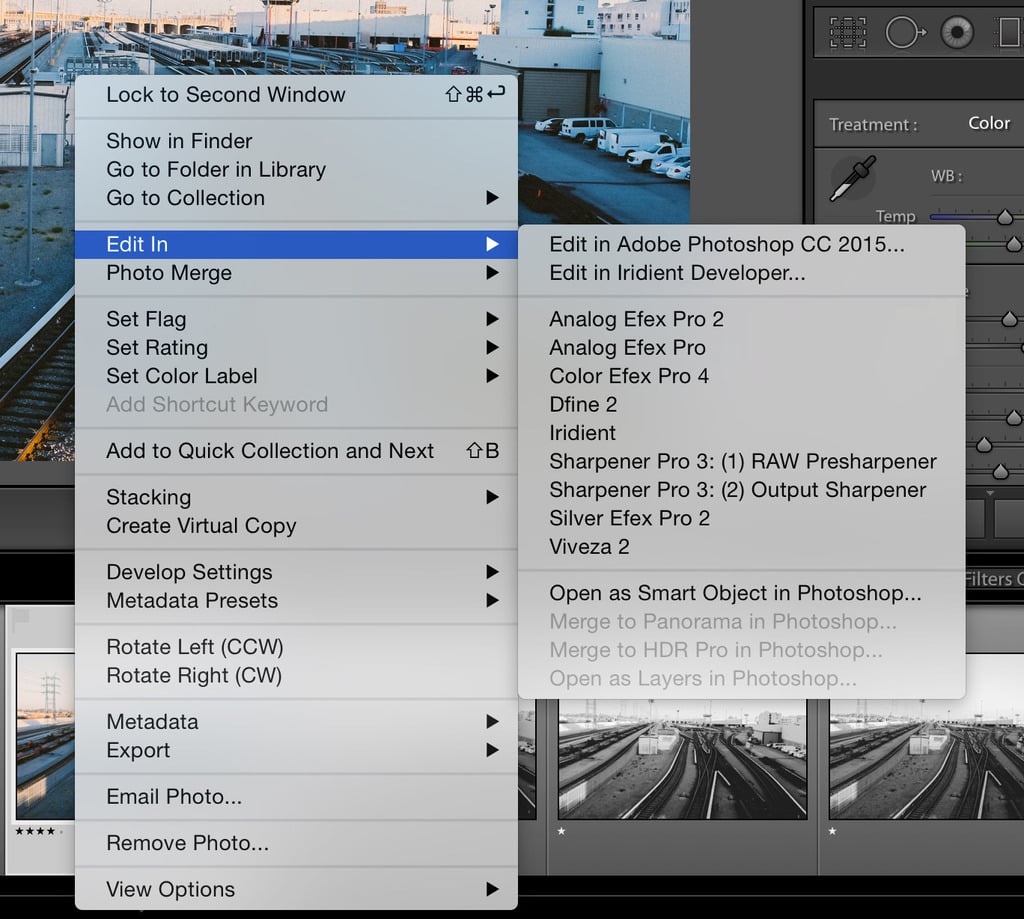
Using Lightroom to Edit in Iridient Developer
Edit Original

EDIT: Unfortunately, this only works for JPEG or TIFF files. It will not work with RAW files. 

If you shot a JPEG, you should Edit a Copy always to have a backup of the original.

Now, you will edit your photo in Iridient like you normally do.

This will not really give you any huge advantage in terms of image detail or X-Trans image RAW converting since you’re using JPEG, but it will allow you to use Iridients’ other great features, like their sharpening and noise reduction tools, which I love.

Send Files To Iridient Developer Manually – For RAW

If the plugin technique isn’t working for you. Or if you’re shooting exclusively RAW, you can always send files to Iridient Developer Manually. It’s as easy as selecting one or as many photos as you like in Lightroom and dragging and dropping them onto your Iridient Developer Icon on your Dock.
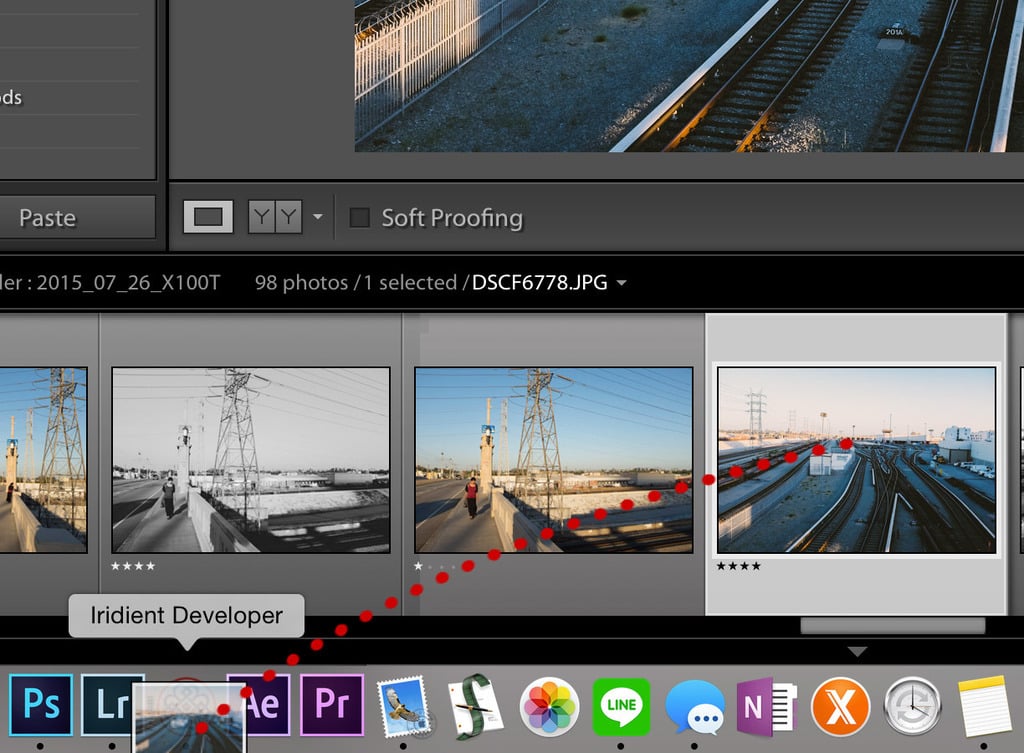
Drag into Iridient Developer from Lightroom

If the icon isn’t there, then open Iridient first, and it should appear. 

Exporting From Iridient Back To Lightroom

When you export from Iridient Developer (or Process Image and Save As), you have a few options: DNG (Photoshop), JPEG, JPEG 2000, PNG, or TIFF. Any of them are fine, although I prefer TIFF. 16bit is ideal.

You’re usually prompted to Save Image to the same folder the file is from, if not, navigate to that folder and export there.

I usually add something like -IR to the end of my file to look like this: DSCF0256-IR.TIFF

This way, when I’m in Lightroom, I’ll be able to instantly see that the file was processed using Iridient Developer by looking at the file name above the preview clip.

To get the file back into Lightroom, you only need to find your corresponding folder in Lightroom, right-click it, and select Synchronize Folders.

Lightroom will then scan that folder and automatically import any new files.
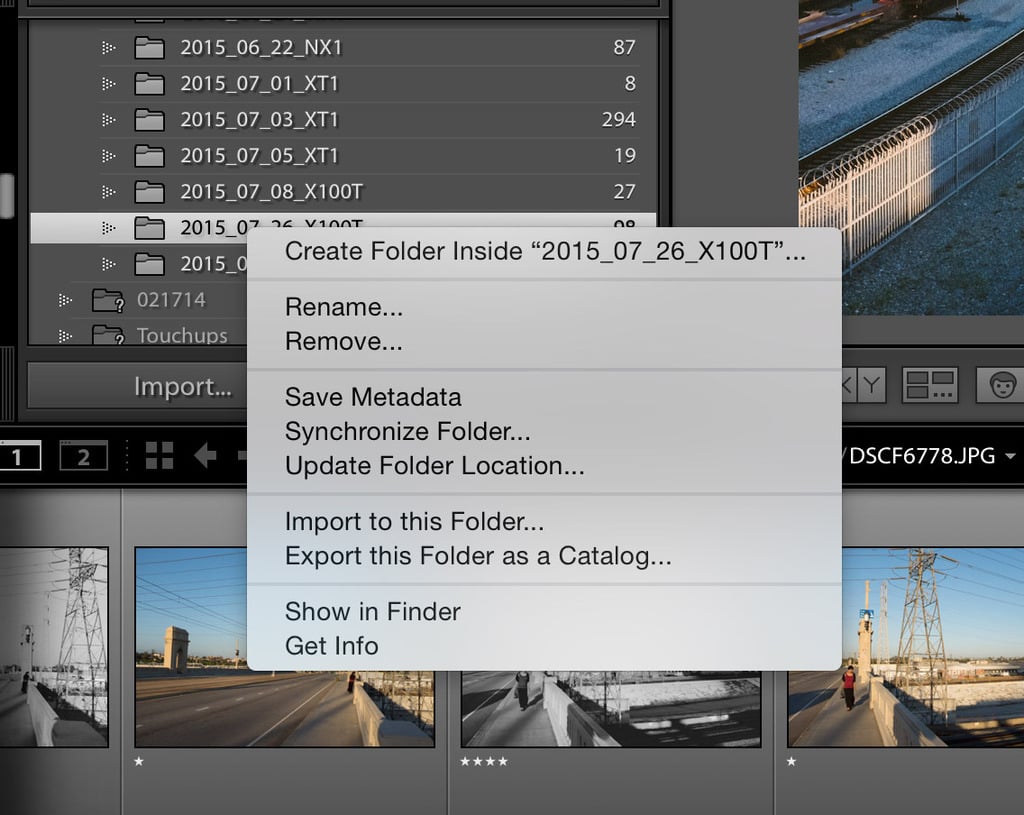
Sync with Lightroom

Exporting From Iridient Without Lightroom

If you’re not using Lightroom and since Iridient has almost no catalog or organizational features, you’ll likely want to create some folder system to manage your exports in your Finder.

I typically set up everything by date and go from there.

If you don’t have a file structure, you can use something like this or a modified version to suit your needs.
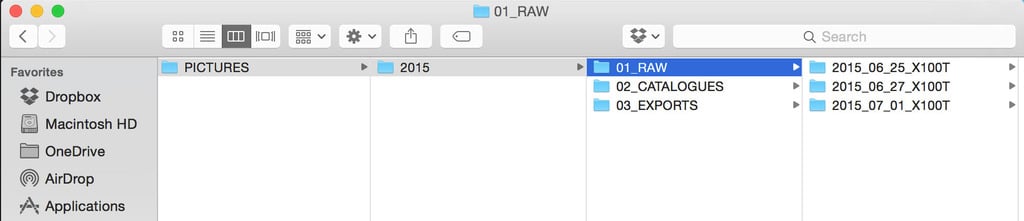
Folder Structure

Saving Your Work With Iridient

If you’re using only Iridient and want to save your all your work or create libraries, you can import as many photos as you like into Iridient and select File -> save image settings for all images. This will save the state of all the images you imported into Iridient so you can work on them later.

You’ll need to use bookmarks to instantly load certain files or folders with your saved work.

Creating Catalogs With Bookmarks

If you want to create catalogs similar to Lightroom, the closest thing you can do is to create bookmarks. 

There are two options when creating bookmarks.

  • Add Current Folder
  • Add Current Image

Add Current Folder will load the entire folder of the image you’re working on and allow you to save it as a bookmark. 

Say you have a day when you go to Yosemite. You can load those images and Add the Current Folder. It will ask you to type the name of this Bookmark, and it will then store that set of photos under your bookmarks for you to load instantly at any time. Just remember to save your work permanently.
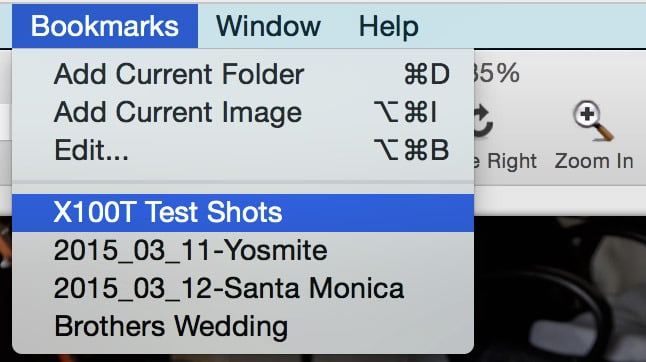
Bookmark

Adding a Current Image allows you to do the same thing but only with a single image.

Working With Iridient Conclusions

Working with Iridient can be a great experience if you can master this workflow. It does a lot for Fujifilm photographers and is worth every penny.

By following this relatively simple guide, you should be able to keep your workflow with Iridient very organized, whether you’re using It with Lightroom or by itself. 

You could probably even use similar workflows with Apple’s Photo Application, although that application is not as flexible regarding organization and managing your photos, from my experience.

However, it can be great for your final exports since it works with the cloud, where you’ll forever have backups if anything catastrophic happens. I personally use a Dropbox folder for my cloud-based backups.

0
0
1
0
0
Alik Griffin

A professional video editor, and photographer with a Bachelors in Film studies from UCSD. Based in Los Angeles, I have created commercials, trailers, and other video content for various clients and platforms since 2005. I also love to write about my passions and share my insights on my blog.

Related Topics
  • Fuji X100T
  • Fujifilm X-T1
  • Fujifilm X-T2
  • Fujifilm X100F
  • Photography Tips
Previous Article
Los Angeles Architectural Art
  • Blog
  • Photo Tips

How To Shoot Better Sun Stars

  • Alik Griffin
  • December 17, 2024
View Post
Next Article
Sydney Grass
  • Blog
  • Photo Stories

A Potential Game Changer

  • Alik Griffin
  • December 17, 2024
View Post

Subscribe

Subscribe now to our newsletter

You May Also Like
Pure Cinema
View Post
  • Blog
  • Featured
  • Lens Reviews
  • Reviews

Viltrox TCL-X100VI Review | A Budget-Friendly 50mm Upgrade

  • Alik Griffin
  • February 17, 2026
  • No comments
Thypoch Simera 75mm f1.4 Review
View Post
  • Blog
  • Featured
  • Lens Reviews

Thypoch Simera 75mm f1.4 Review & Sample Photos

  • Alik Griffin
  • February 18, 2026
  • No comments
Kakurajima View
View Post
  • Blog
  • Featured
  • Lens Reviews

Viltrox WCL-X100VI Review | A Budget-Friendly 28mm Upgrade

  • Alik Griffin
  • February 17, 2026
  • 2 comments
Sony A7V Announcement
View Post
  • Blog
  • What's New

Sony A7V – They’re Back In The Game

  • Alik Griffin
  • December 30, 2025
  • 4 comments
3 comments
  1. Aaron Ramsey says:
    March 28, 2017 at 9:41 pm

    When I have made some adjustments to a RAW X100f file in Lightroom, then drag it to the Iridient Developer icon, it opens that RAW file in ID, however the changes are gone and I’m looking at the original RAW file again. I have also tried saving the metadata in Lightroom to the file(s), and opening them in ID, only to have the same result. Is there a way to import the RAW file AND its XMP data over to ID before processing said file into a TIFF?

    Reply
    1. Alik Griffin says:
      March 28, 2017 at 10:49 pm

      You can’t import the RAW XMP data over to ID. But it would actually be better to go the other way. Use ID to process the RAW into a TIFF and make your adjustments all in LR on the Tiff file made by ID. Since ID processes the RAWs a little nicer than Lightroom. That’s the biggest advantage of ID.

      Reply
      1. Aaron Ramsey says:
        March 28, 2017 at 10:51 pm

        Okay excellent! Thanks you very much for the information!

        Reply

Leave a Reply Cancel reply

Your email address will not be published. Required fields are marked *

San Clemente Sunset

Join The Newsletter

Featured
  • TTArtisan 27mm f2.8 AF Front of Lens
    TTArtisan AF 27mm f2.8 Review & Sample Photos
    • 5 comments
  • Nikon Z 40mm f2 Review | The New Compact King
    • 26 comments
  • Tiffen Black Pro Mist Filter At Night. Streets Of Tenjin Japan
    Tiffen Black Pro Mist Review – Is This The One?
    • 10 comments
  • Mud Face
    Nikon Z 35mm f1.4 vs Nikon Z 35mm f1.8 S – Sample Images
    • 28 comments
  • How To Edit Photos To Look Like Film
    • 4 comments
  • Kalina Flower FIeld
    Nikon Z 50mm f1.4 Review & Sample Photos
    • 24 comments
  • On Board
    Fujifilm X100VI Review & Sample Photo
    • 5 comments
  • What is Micro Contrast
    Micro-Contrast, Is It Real? – Samples With Lens Comparisons
    • 17 comments

Subscribe

Subscribe now to our newsletter

Privacy Policy | Licensing | About Me | Contact

Copyright © Alik Griffin Inc. 2025

Input your search keywords and press Enter.