We use minimal analytics to improve the site. Is that okay?

Alik Griffin
San Clemente Sunset
Subscription Form
  • Reviews
    • Accessory Reviews
    • Calculators
      • Video Data Rate Calculator | Record Time Calculator
      • Diffraction Calculator
      • DoF Calculator | Lens Equivalent
      • Shutter Speed to Shutter Angle Calculator
    • Camera Reviews
    • Lens Reviews
    • Memory Cards Recommendations
      • Fastests SD Memory Cards
      • Fastest MicroSD Cards
      • Fastest CFExpress Type-B Card
      • Fastest CFExpress Type-A Cards
      • Best CFast Memory Card
    • List of Mics
      • Best Streaming & Podcast Mics
  • Camera Guides
    • List of all Blackmagic Cameras
    • List Of all Canon RF Cameras
    • List of all Fujifilm Cameras
    • List of all Nikon Z Cameras
    • List of all Panasonic Cameras
    • List Of all Sony E Cameras
  • List of Lenses
    • Canon RF Lenses
    • Fujifilm GFX Lenses
    • Fujifilm XF Lenses
    • L-Mount Lenses
    • Leica M Lenses
    • Micro Four Thirds Lenses
    • Nikon Z Lenses
    • PL Mount Cine Lenses
    • Sony E Lenses (FE and APS-C)
  • Store
  • My account
Alik Griffin
Alik Griffin
  • Reviews
    • Accessory Reviews
    • Calculators
      • Video Data Rate Calculator | Record Time Calculator
      • Diffraction Calculator
      • DoF Calculator | Lens Equivalent
      • Shutter Speed to Shutter Angle Calculator
    • Camera Reviews
    • Lens Reviews
    • Memory Cards Recommendations
      • Fastests SD Memory Cards
      • Fastest MicroSD Cards
      • Fastest CFExpress Type-B Card
      • Fastest CFExpress Type-A Cards
      • Best CFast Memory Card
    • List of Mics
      • Best Streaming & Podcast Mics
  • Camera Guides
    • List of all Blackmagic Cameras
    • List Of all Canon RF Cameras
    • List of all Fujifilm Cameras
    • List of all Nikon Z Cameras
    • List of all Panasonic Cameras
    • List Of all Sony E Cameras
  • List of Lenses
    • Canon RF Lenses
    • Fujifilm GFX Lenses
    • Fujifilm XF Lenses
    • L-Mount Lenses
    • Leica M Lenses
    • Micro Four Thirds Lenses
    • Nikon Z Lenses
    • PL Mount Cine Lenses
    • Sony E Lenses (FE and APS-C)
  • Store
  • My account
  • Pure Cinema
    Viltrox TCL-X100VI Review | A Budget-Friendly 50mm Upgrade
    • February 21, 2026
  • Thypoch Simera 75mm f1.4 Review
    Thypoch Simera 75mm f1.4 Review & Sample Photos
    • February 18, 2026
  • Kakurajima View
    Viltrox WCL-X100VI Review | A Budget-Friendly 28mm Upgrade
    • February 17, 2026
  • Viltrox 9mm f2.8 Air Review
    Viltrox 9mm f2.8 AIR Review & Sample Photos
    • February 18, 2026
  • Biker Bro
    Viltrox Spark Z3 Flash – Review & Sample Photos
    • February 16, 2026
  • Pure Cinema

    Viltrox TCL-X100VI Review | A Budget-Friendly 50mm Upgrade

    View Post
  • Thypoch Simera 75mm f1.4 Review

    Thypoch Simera 75mm f1.4 Review & Sample Photos

    View Post
  • Kakurajima View

    Viltrox WCL-X100VI Review | A Budget-Friendly 28mm Upgrade

    View Post
Trending Posts
  • Nikon Zf Official Announcement 1
    Nikon Zf – The Fujifilm Killer?
    • February 18, 2026
  • Nikon Z 50mm f1.8 S Lens Review 2
    Nikon Z 50mm f1.8 S Lens Review & Sample Photos
    • February 18, 2026
  • Kamlan 50mm f1.1 II Product Shot 3
    Kamlan 50mm f1.1 II Review & Sample Photos
    • January 18, 2025
0
  • Blog
  • Photo Tips

How To Export From Lightroom To Instagram

  • Alik Griffin
  • December 9, 2024
  • No comments

This website contains affiliate links. We will earn a small commission on purchases made through these links. Some of the links used in these articles will direct you to Amazon. As an Amazon Associate, I earn from qualifying purchases.

This guide will show you how I transfer my photos from Lightroom to Instagram. It’s pretty easy and only requires a few relatively quick steps. This technique works from Photoshop and is the same on PC and Mac.

Golden Terrace

What Not To Do – Using Lightroom Mobile

If you edit your photos on Lightroom mobile and use Lightroom Classic on your Windows, which syncs photos to your mobile device, you’ll only get smart previews on your phone or tablet, which are only about 2MP. You cannot get full-resolution images on your mobile device if you’re using Lightroom Classic.

You would have to convert your catalog to Lightroom CC and sync the full-resolution images to the Adobe Cloud, where you would quickly run out of space.

Now that I said what not to do, that’s actually what I do. I export LR photos on my tablet to post to Instagram. IG photos are only about 2MP anyway, so it’s all fine. But this is not ideal if you want higher-resolution photos on your phone or tablet.

How to Get Photos From Lightroom Classic To Your Phone or Tablet

    Airdrop: If you’re on the Apple Echosystem, the easiest way to get your photos to your phone is to use Airdrop.

    Meshnet: If you use NordVPN, you can use Meshnet. It is free and works very similarly to AirDrop on Apple devices.
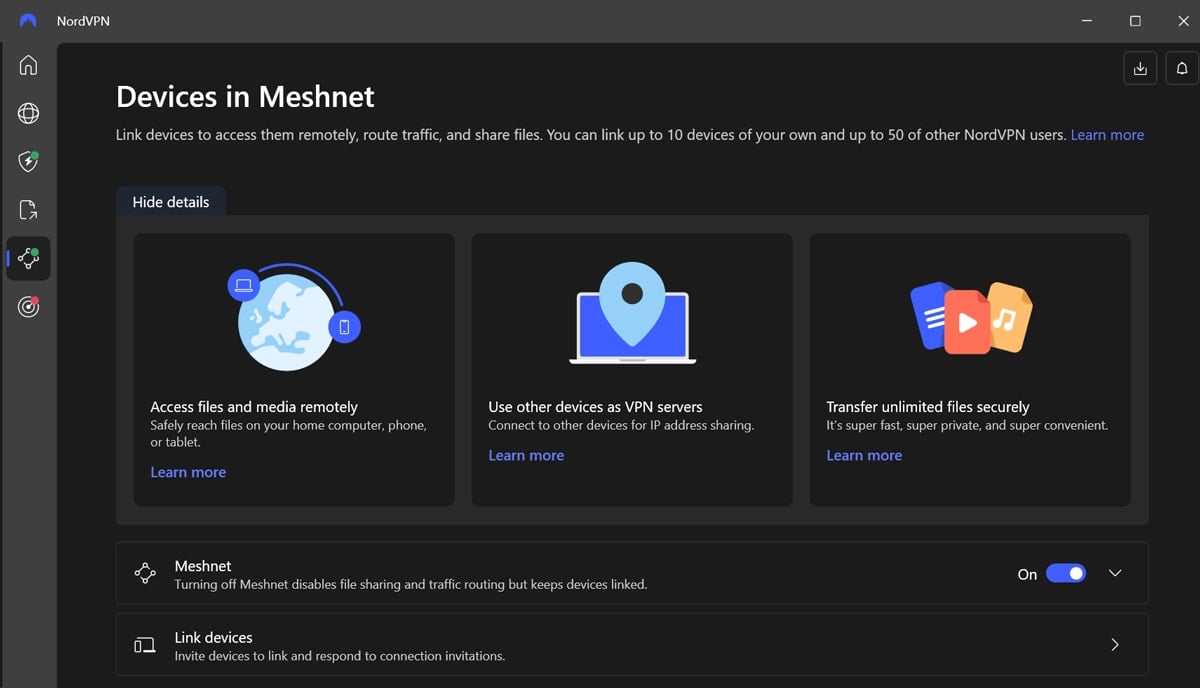
    AG Nord Meshnet

    Cloud Sync: I usually sync all my photo exports with one of the Clouddrive services. I used to use Dropbox, but today, I mostly use OneDrive.

    Here is how you can do that.

    Step 1. Create A Dropbox, OneDrive, or Google Drive Account

    I like OneDrive. I have 5GB for free, but I use a 365 Basic business account that gives me 1TB and costs less than Dropbox.

    Step 2. Dedicate A Folder On You Computer For Your Exports

    I’ve named my Exports/Prints in my Dropbox folder.

    Step 3. Create An Export Preset In Lightroom

    Using Lightroom, create an export preset that will automatically export your photos at a reasonable size to the Dropbox folder you made above.
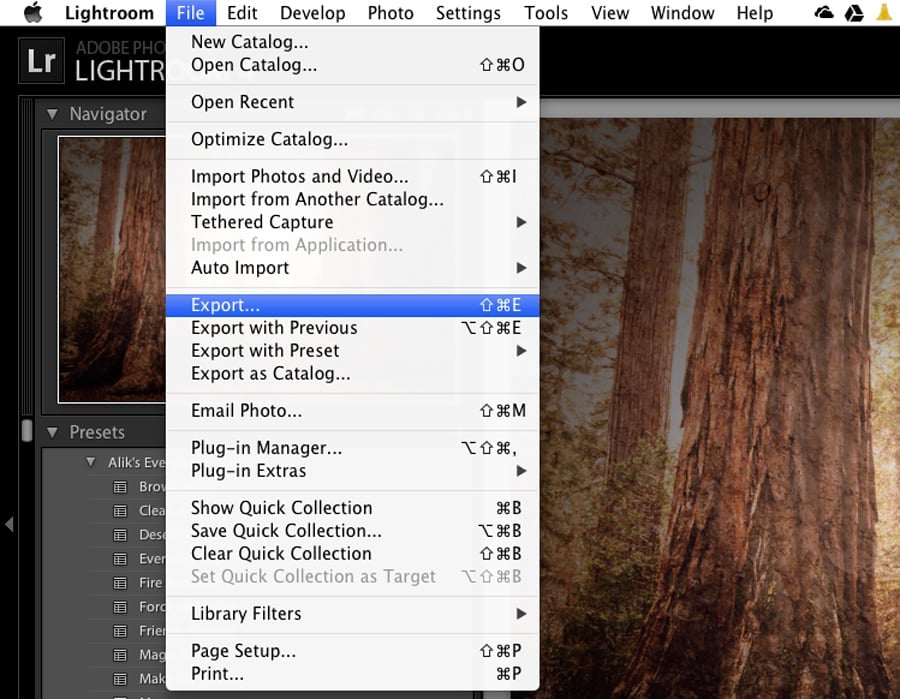
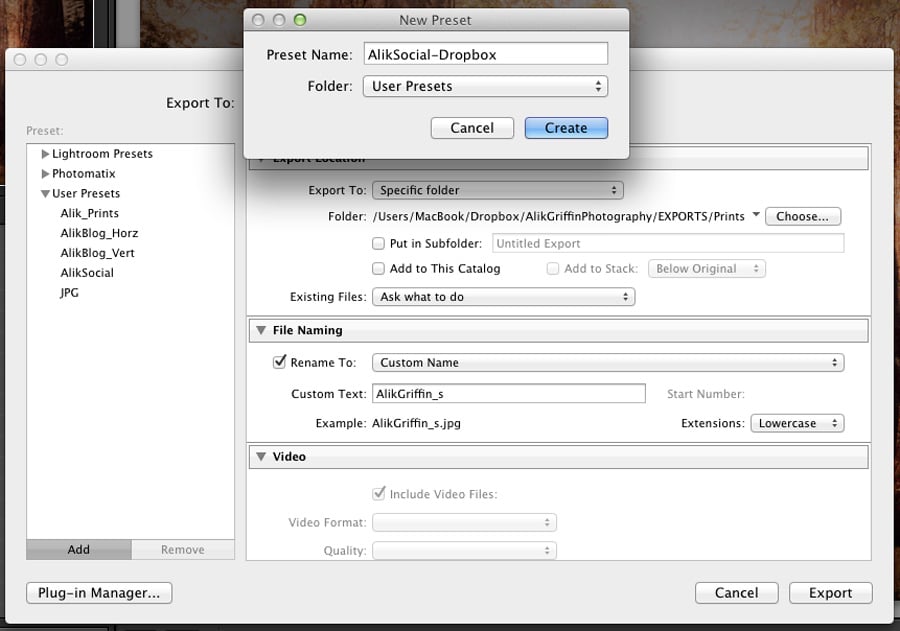
    Lightroom Export

    Export Social

    The smaller file will automatically go into my Dropbox folder whenever I export.

    Step 4. Install Dropbox On Your Android Or iPhone

    Link your account and adjust your upload setting. Make sure to specify if you want to upload it on Wi-Fi or over the network. 

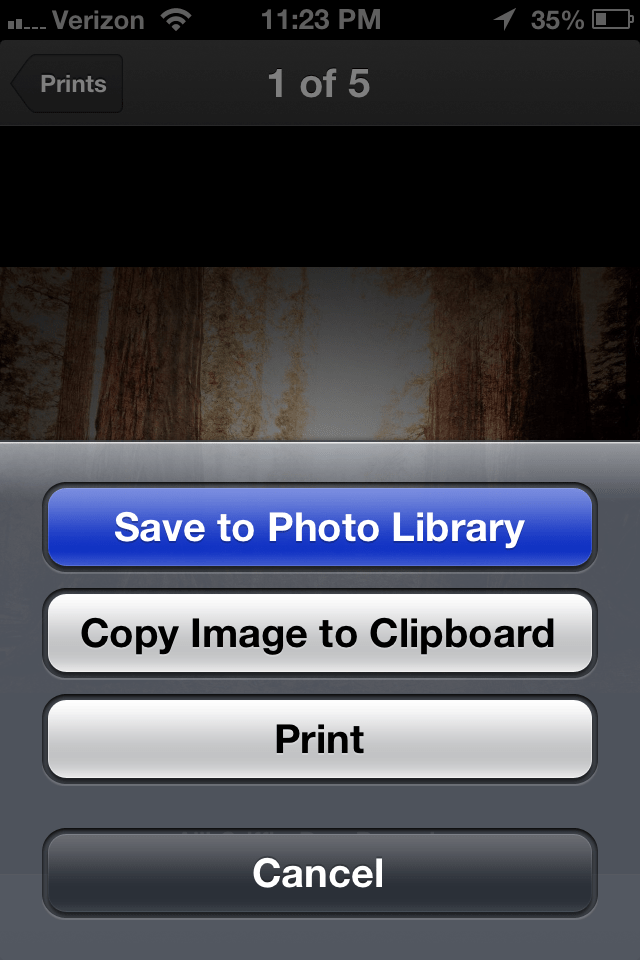
    Step 5. Open Your Photo In Dropbox On Your iPhone Or Android And Save To Your Phone

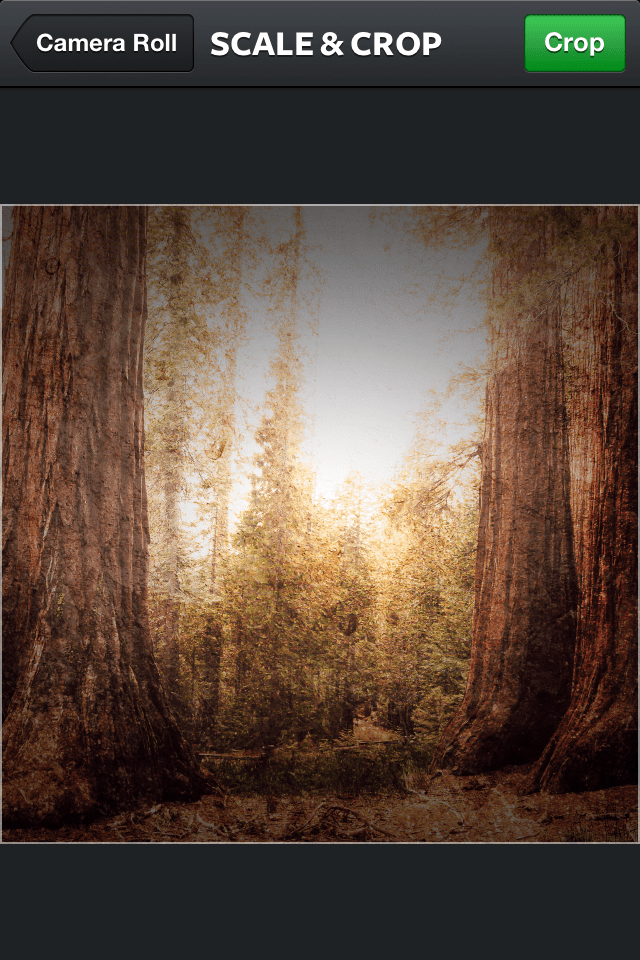
    This process will be different depending on your device. Here are some images of an older version of Dropbox.
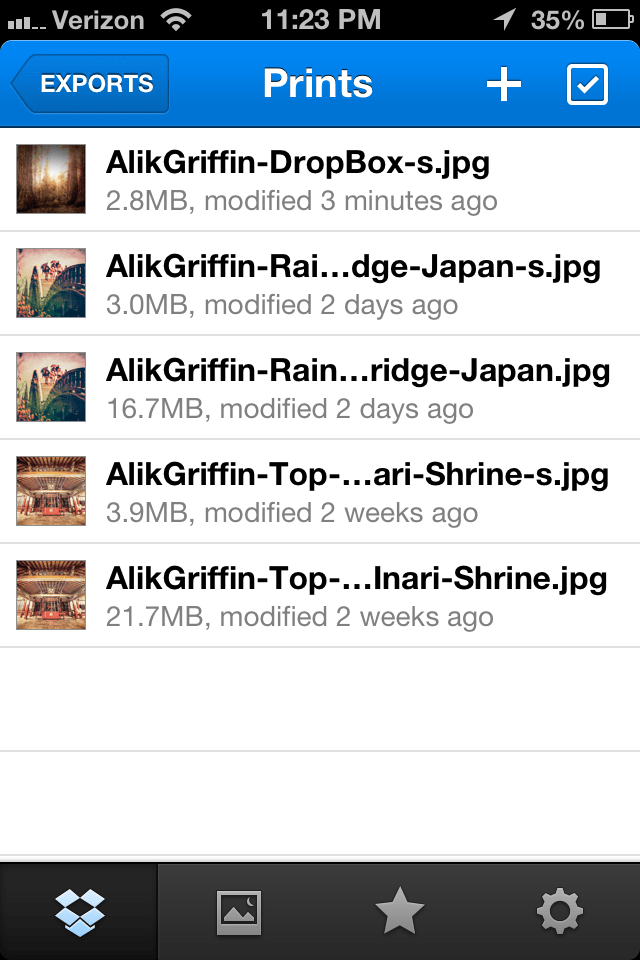
    Prints
    save Photo To Library
    Scale Crop

    Step 6. Open Photo In The Instagram App

    Now, you can access the photo, crop it as you wish, and upload it to Instagram. It’s very easy and quick. 

    If you don’t want to crop your photo, you can always letterbox it in Photoshop before downloading it to your phone.

    How To Get The White Boarders For Instagram

    Instagram limits your portraits to the 4×5 aspect ratio, so if you have an image that you want to show in a 2×3 aspect ratio, you need to place it into a 4×5 image with borders.

    On my iPhone or iPad, I use the Darkroom App to add borders to my images; unfortunately, this is only available on iOS.

    The Darkroom app is the best for adding borders to your Instagram images. It gives you a ton of flexibility and options, including the ability to change the borders’ color.
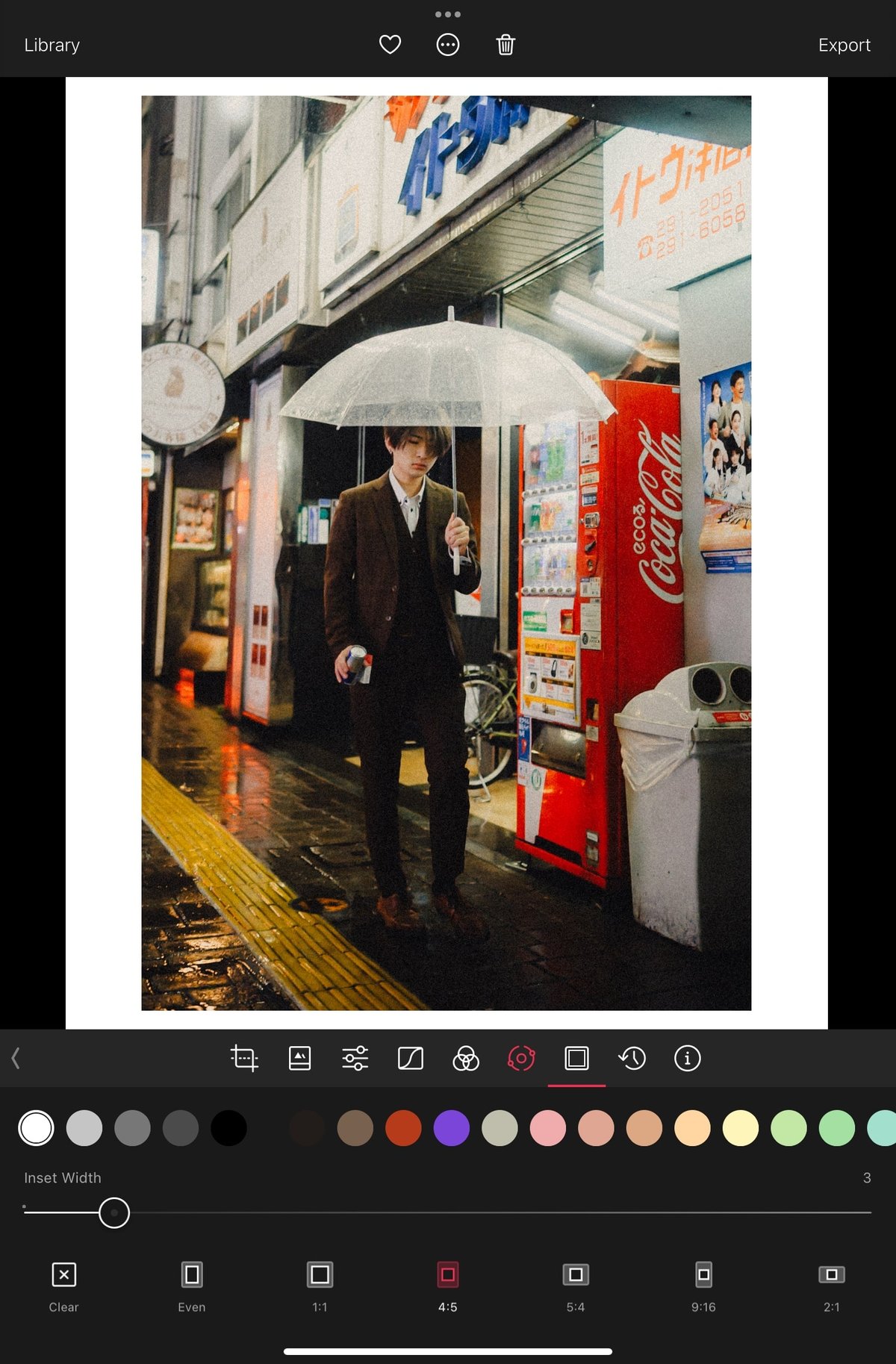
    AG Darkroom App Bordered Image For Instagram

    Unfortunately, I have not yet found a good Android option. So before I had an iPad, I built an Action in Photoshop that would automatically add borders to my images in the 4×5 or square crop.


    0
    0
    0
    0
    0
    Alik Griffin

    A professional video editor, and photographer with a Bachelors in Film studies from UCSD. Based in Los Angeles, I have created commercials, trailers, and other video content for various clients and platforms since 2005. I also love to write about my passions and share my insights on my blog.

    Related Topics
    • Photography Tips
    Previous Article
    • Photo Tips

    Using your Camera’s Custom Modes

    • Alik Griffin
    • April 14, 2024
    View Post
    Next Article
    Mesquite Dunes of Death Valley
    • Blog
    • Photo Stories

    Rolling Mesquite Dunes of Death Valley

    • Alik Griffin
    • December 9, 2024
    View Post

    Subscribe

    Subscribe now to our newsletter

    You May Also Like
    Pure Cinema
    View Post
    • Blog
    • Featured
    • Lens Reviews
    • Reviews

    Viltrox TCL-X100VI Review | A Budget-Friendly 50mm Upgrade

    • Alik Griffin
    • February 21, 2026
    • No comments
    Thypoch Simera 75mm f1.4 Review
    View Post
    • Blog
    • Featured
    • Lens Reviews

    Thypoch Simera 75mm f1.4 Review & Sample Photos

    • Alik Griffin
    • February 18, 2026
    • No comments
    Kakurajima View
    View Post
    • Blog
    • Featured
    • Lens Reviews

    Viltrox WCL-X100VI Review | A Budget-Friendly 28mm Upgrade

    • Alik Griffin
    • February 17, 2026
    • 2 comments
    Sony A7V Announcement
    View Post
    • Blog
    • What's New

    Sony A7V – They’re Back In The Game

    • Alik Griffin
    • December 30, 2025
    • 4 comments

    Leave a Reply Cancel reply

    Your email address will not be published. Required fields are marked *

    San Clemente Sunset

    Join The Newsletter

    Featured
    • On Board
      Fujifilm X100VI Review & Sample Photo
      • 5 comments
    • TTArtisan 23mm f1.8 Product Shots
      TTArtisan AF 23mm f1.8 Lens Review & Sample Photos
      • 3 comments
    • TTArtisan 27mm f2.8 AF Front of Lens
      TTArtisan AF 27mm f2.8 Review & Sample Photos
      • 5 comments
    • San Clemente Sunkiss
      Viltrox 15mm f1.7 Air Lens Review & Sample Photos
      • 6 comments
    • What is Micro Contrast
      Micro-Contrast, Is It Real? – Samples With Lens Comparisons
      • 17 comments
    • Kalina Flower FIeld
      Nikon Z 50mm f1.4 Review & Sample Photos
      • 25 comments
    • Viltrox 9mm f2.8 Air Review
      Viltrox 9mm f2.8 AIR Review & Sample Photos
      • 2 comments
    • Tiffen Black Pro Mist Filter At Night. Streets Of Tenjin Japan
      Tiffen Black Pro Mist Review – Is This The One?
      • 10 comments

    Subscribe

    Subscribe now to our newsletter

    Privacy Policy | Licensing | About Me | Contact

    Copyright © Alik Griffin Inc. 2025

    Input your search keywords and press Enter.