
With the release of the new Lightroom CC 2015 or Lightroom 6, we can merge our HDRs by photo without leaving the software.
The technique used is slightly different than any other program I’ve used.
Here’s how it works
First, you select all the photos you’d like to merge. Right-click, select Photo Merge, then HDR.
Then, this window comes up.
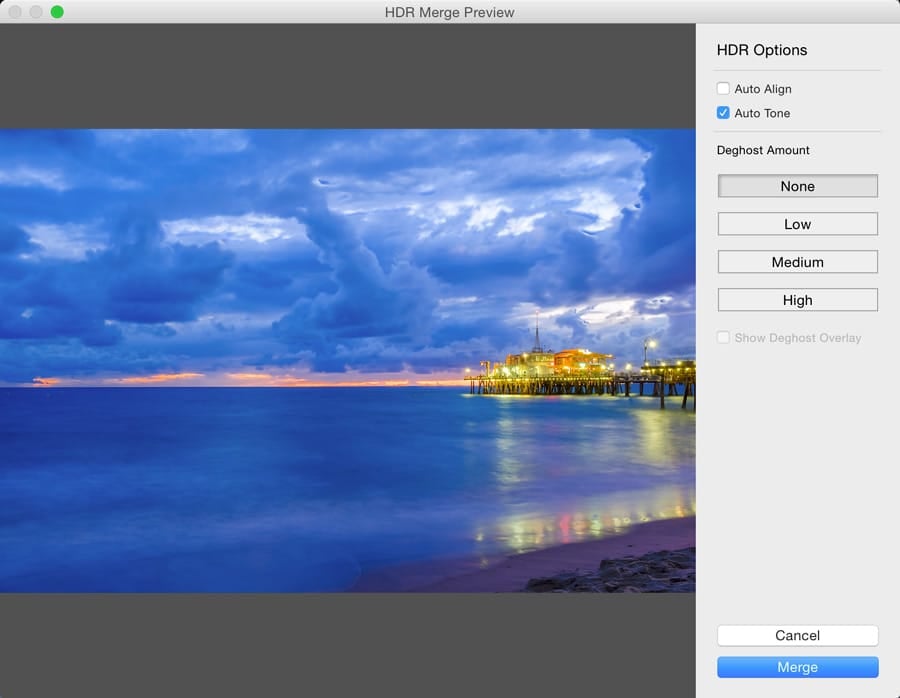
That’s it—no other options. Click merge, and then you get a new, merged DNG file. You can still adjust all the color temperatures or even change your lens setting or color profile. Very cool.
You’re getting a new single image with all the data from the other images without any crazy tone mapping.
From there, you process like normal. You can stay completely in Lightroom like I did with this photo or move on to other applications.
I think it was smart to go about it.
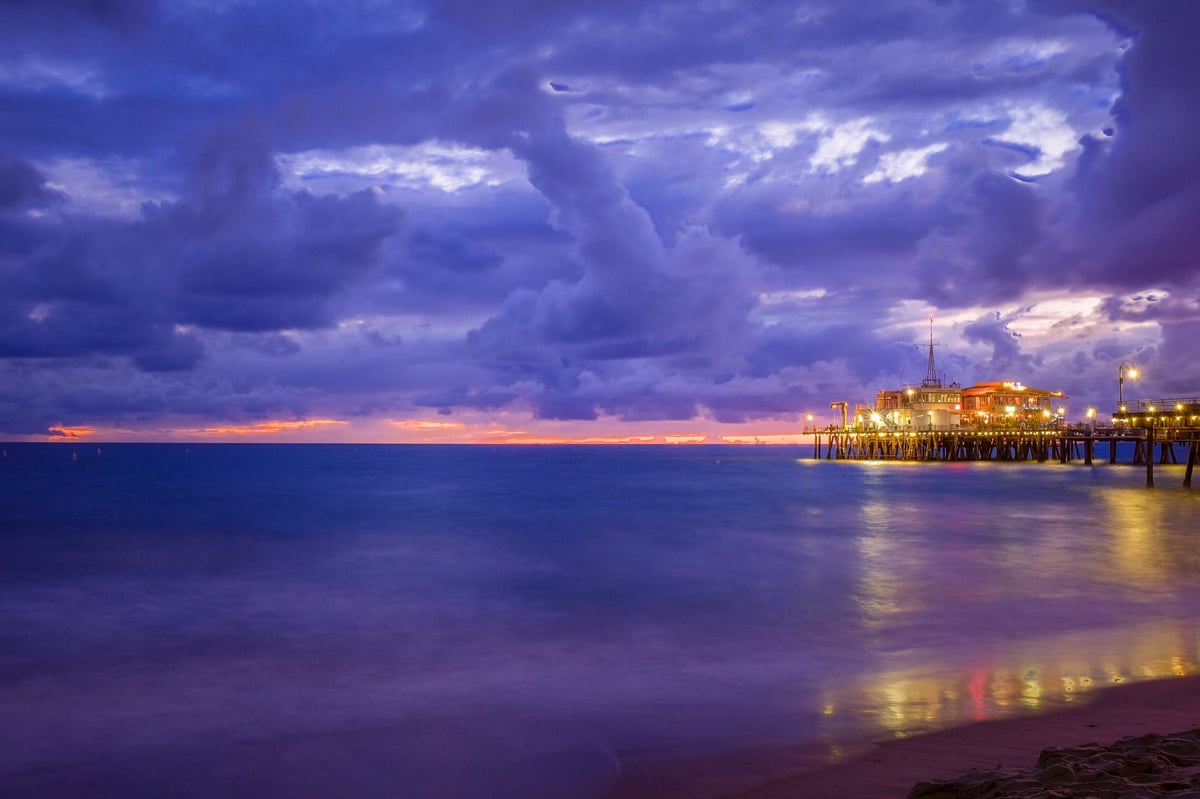
HDR In Lightroom At The Santa Monica Pier
Three-shot HDR taken with the Fuji X100T. They shot a JPEG of the Velvia color profile.
HDR Photo was merged and processed in Lightroom.


Leave a Reply